
November 2025: CHARTS Patch 155: Year End Update
Table of Contents
Prior to year-end, you should load the November 17th, 2025 Year End Release: Update #155
- Payroll: Before closing out the year:
- Adjusting for Non-Payroll Compensation. See P-4470.
- Health Insurance Premium Reporting
- Payroll: After the last payroll of the year
- Payroll: Carrying over Sick/Vacation/Holiday/Personal Benefits to the New Year
- Payroll: Federal Tax Tables for 2026 are not yet available
- FICA Rates remain unchanged, the FICA limit has been increased to $184,500 for 2026
- The Secure Act 2.0 limits 401K Deductions
- Payroll: Printing W2s
- Verify W2 information
- Obtaining a UserID to submit W2s
- Printing your 2025 W2s
- Verifying and filing your W2s with the federal government
II. Payroll: Before closing out the year.
Adjusting for Non-Payroll Compensation. See P-4470
If an employer pays for an automobile that the employee uses for business or if the employer pays for certain life insurance policies for the employee, the employee is obligated to pay tax on a portion of the value of these benefits. To handle this see P-4470.
Health Insurance Premium Reporting – 2025 W2 Reporting.
Employers required to file 250 or more W-2 forms are responsible for reporting to employees the total cost of their group health benefit plan coverage on their W-2 forms under the Patient Protection and Affordable Care Act. This requirement went into effect in 2012 with the 2012 W-2 forms. Reportable costs include both employer and employee contributions for group health plan coverage. This requirement is informational only and any employer-provided coverage will not be subject to income tax.
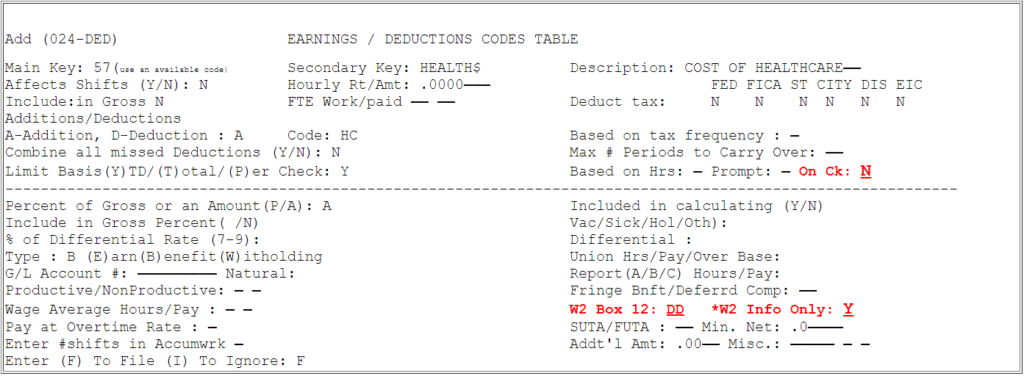
Please verify your deduction code in Change Table File – CTF, 10, 3 – Deduction Code Table. Make sure that the W2 Box 12 is set to “DD” and that the W2 Info Only field is set to “Y”. Also verify that the Print Deduction On Check field ‘On Chk’ should be set to “N”, this will suppress the Health Insurance amount from printing on the employee stub of the payroll check. [Please note in the example below code ’57’ is used for illustration purposes only, use an available code.]
Yearly premium amounts can then be entered in the ACCUMWRK screen [PR, 2, 2]. Any amounts entered will be reflected on the W2 form. Amounts entered will not change yearly employee compensation amounts or impact tax liability.
III: Payroll: After your last payroll of the year.
Facilities can start 2026 payrolls without RHS client services intervention, as long as Update #155 has been loaded.
When printing payroll checks for the first time in 2026 [PRINTCKS – PR, 3] the 2025 payroll backup facility will be automatically created and all 2026 year to date totals will be reset to zero. It is important that when setting the first payroll period in 2026 [SETPR – PR, 1, 1] that the Beginning/End Indicator be set to ‘B’ for both Month and Year.
Both 2025 and 2026 payroll data can be accessed from the current nursing facility. It will therefore be possible to run payroll reports crossing years if desired.
You will still be able to log into the 2025 Employee Master information to quickly review year end totals or make payroll adjustments after the 2026 payroll is live.
IV: Payroll: Carrying over Sick/Vacation/Holiday/Personal Benefits to the new year.
BEFORE STARTING – MAKE SURE THAT YOU ARE LOGGED INTO THE CURRENT ACTIVE PAYROLL
Step 1. Verify the User Parameter PR Screen – Type NHPR (CR)
Make sure that the Carryover Percentage for Sick and Vacation is 100% – if you are carrying over Sick and Vacation fully.
| Sick | Vacation | |||
| % Payout/Carryover line | xxxxx | 100.00 | xxxxxx | 100.00 |
Press ENTER to Save.
Step 2. Running the Accrual Update Program
Run Update Vac/Sick/Hol Info [GM,18, 4, 1, 7]
Fill in the screen as follows:
Processing Order: E
From Department: A To ZZ
From Date: MM/DD/YY To MM/DD/YY [generally 01/01/2025 – 12/31/2025]
Vacation: _ (enter Y if you are carrying over vacation)
Sick : _ (enter Y if you are carrying over sick)
Holiday:_ (enter Y if you are carrying over holiday)
Enter an ‘X’ to Run Update: X (This Must Be Entered.)
Print Terminated Employees: N
Print Option: – Spool or Printer default
The remaining questions on the screen can be left as prompted.
Press ENTER.
Step 3. Run an Accrued Benefits Report to verify that the information is correct.
Reminder: If printing accruals on payroll checks, make sure to change the accrual start date to January 1, 2026 in NHPR [UP, 5] or leave that date blank and the system will automatically assume January 1 of the current year.
V: Payroll: FICA rates remain unchanged, the FICA limits have been increased to $184,500 for 2026.
The SECURE ACT 2.0 and 401K Deduction Limits for 2026
The FICA limit for 2025 has been increased from $168,600 to $176,100. The FICA rates are unchanged from 2024.
Effective January 1, 2026, participants who have earned in excess of $150,000 in FICA wages the previous year must make all catch-up contributions as Roth (after-tax) contributions. This means that if high-wage earners wish to make catch up contributions they must do so on an after-tax basis. This rule applies to both 401(k) and 403(b) plans.
The 401K deduction limits have been increased for 2026.
$24,500 for those under 50 years of age
$24,500 plus an additional $8,000 catch up contribution for those over 50 years of age (total limit $32,500).
Higher Catch Up Contributions for Certain Individuals.
Starting January 1, 2025, individuals 60 through 63 years old will be able to make catch-up contributions up to $11,250 annually in 2026 to their workplace plan. The catch-up for other individuals over 50 years of age is still limited to $8,000. The Secure Act 2.0 limits this provision only to employees whose FICA wages were $150,000 or below in the previous tax year as mentioned above.
VI: Payroll: Printing W2s
Verify W2 Information
Check Earning/Deduction Table File (CTF 10, 3) to ensure that all items have the correct tax status:
In the Earning/Deduction table file a “Y” = indicates that the particular tax applies.
A rule-of-thumb as to which Earning/Deduction impacts taxes is as follows:Earnings – All Taxes (all “Y”s)Deductions – No Taxes (all “N”s)Qualified Plan – All Taxes (“Y”s) except FICA (“N”)
Check Earning/Deduction Table File to Ensure that Code 61 exists for 3rd Party Pay.
Check with your accountant if any fringe benefits or deferred compensation amounts are applicable to your facility. If they are – then make sure that an entry for this item exists in the Earning/Deduction Table File so that the W2’s are correct. These amounts should be entered in the 2025 payroll prior to printing the W2’s and Quarterly reports.
If your Facility has any of the following pension plans then you must check the Earning/Deduction Payroll Table Files to ensure that:1) A “Y” has been entered for Deferred Compensation
2) The correct code was entered in the field Box 12 for W2.
Code Pension Plan
04 401 (k)
05 403(b)
06 408(k)
07 section 457 plan
08 501 (c) (1 8) (D)
12 other non qualified plan
3) SUTA/FUTA N N
4) Tax Status Y N Y Y Y Y [ Illustration is for states that allow Pensions Plans to be deducted from state and local income, for example NY State.]
Tax Status Y N N N N N [ Illustration is for states that do not allow Pension Plans to be deducted from state and local income, example PA.]
Important Note: Changing the tax codes may affect the taxable wages which might require sending a revised quarterly report to the IRS (Form 941-X) and/or State.
Reporting Overtime on the W2
Due to the recent tax legislation passed by congress and signed into law, overtime wages paid are required to be included on the W2. The overtime wages are reported in Box 12 labeled as ‘TT’.
The deduction for overtime applies only to the ‘half’ of the ‘time-an-a-half’ paid over the regular employee pay rate. Additionally, overtime wages are only applicable when the employee has worked over 40 hours per week. The 40 hours worked calculation excludes Holiday and PTO hours paid, which are not considered hours worked based on FLSA guidelines.
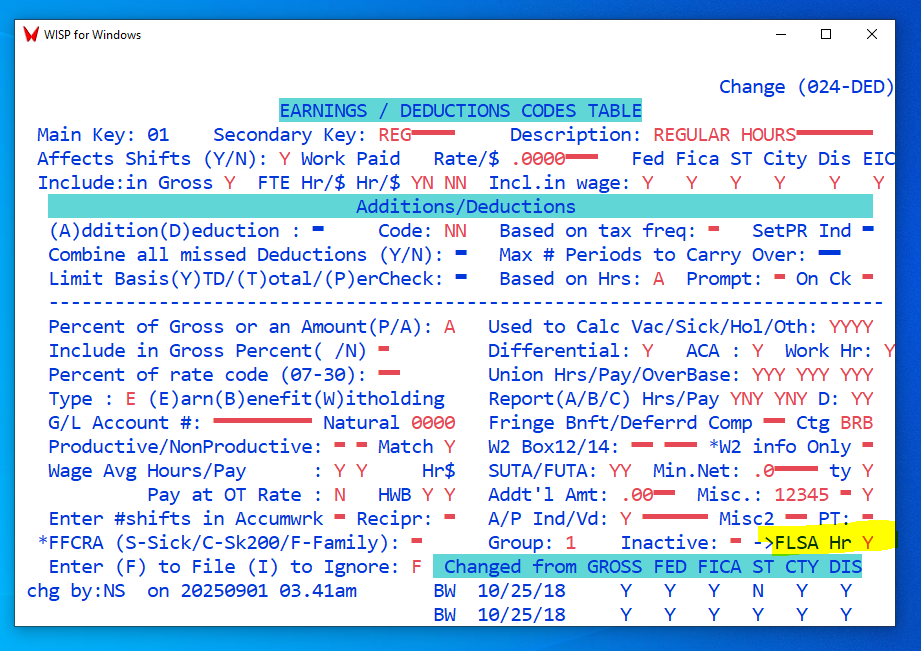
It is required to update the CHARTS hourly codes to classify what is considered an hour worked and which hours are classified as overtime.
Change Table File (CTF, 10, 3) review codes 1 through 30.
If an hour is considered worked, indicate that by entering ‘Y’ in the FSLA Hours field.
Hours that are used for Overtime Pay should be marked as ‘Y’ in the ‘Pay at OT rate’ field and also as ‘Y’ in the ‘FLSA Hour’ field, since they are also a worked hour.

Obtaining a UserID to submit W2s
Step 1. Obtain a User ID and/ or verify your ability to log into BSO:
Go to http://www.ssa.gov/bso/bsowelcome.htm to verify your ability to log into BSO.
In you have submitted W2s in previous years skip to Printing your 2025 W2’s, otherwise follow the instructions outlined below in Step 2.
Step 2. Create Table File Entry:
After you receive your PIN number do the following:
From any CHARTS menu type ATF ENTER, 18 ENTER, 10 ENTER.
At Main Key type W2 , at Secondary Key type W2FILE , and press ENTER.
The following screen appears:
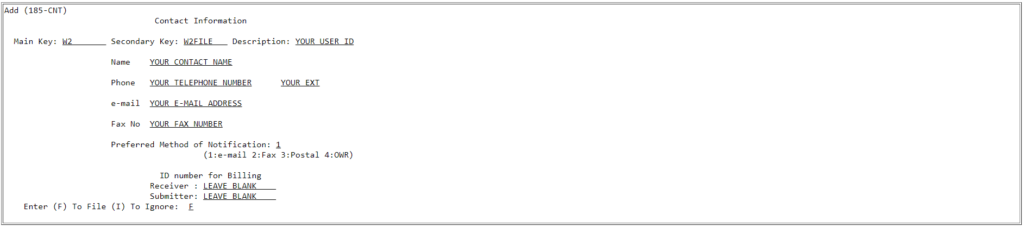
Note: The telephone number must be entered without dashes.
Fill in the information as noted above and press ENTER.
Printing your 2025 W2s
Printing the W2’s:
You will need to run the W2 program twice:
1. Copy A For Social Security Administrator on paper or magnetic media.
2. The employee copies.
Copy A For Social Security Administrator – On Paper:
Do this section only if you have less than 10 employees and you are printing the W2’s. If you are doing Copy A on magnetic media skip to Copy A For Social Security Administrator – On Magnetic Media
Type SETPRINT and select the proper print class. [CTF, 19, 1- Laser Printers ‘Printer Classes’ in Column #2]
From any CHARTS menu type W2NEW or [GM, 10, 6, 4] and press Enter.

Complete the above screen, insert Copy A forms in your printer and press ENTER. Go to print The Employee copies.
Copy A For Social Security Administrator – On Magnetic Media
From any CHARTS menu type W2NEW or [GM, 10, 6, 4] and press Enter.

Complete the above screen, insert the 4 part W2 into your printer & press ENTER.
The Employee copies:
Type SETPRINT and select the proper print class. [CTF, 19, 1- Laser Printers ‘Printer Classes’ in Column #1]
From any CHARTS menu type W2NEW or [GM, 10, 6, 4] and press Enter.

Different laser printers are aligned slightly differently.
Print only a few W2s to check your printer’s alignment.
If the W2s print ok, go ahead and print your W2s.
If not, at Laser Adjust type a positive number (start with 10) to adjust downwards or a negative number (start with -10) to adjust upwards.
Verifying and filing your W2s with the federal government
You will need to obtain a User Id as previously described before submitting your W2’s.
Note: That the process of veryifying and submitting W2s has changed from previous years.
Please follow the following steps:
1) Verify your W2s prior to submission
Go to their web site https://www.ssa.gov/bso/bsowelcome.htm
Click “Sign In” then and enter your User ID and Password and Press Enter.
Click “Report Wages to Social Security“
Click “I Accept“
Click the “AccuWage Online” tab and then Click on “Accuwage Online“
Select “W-2 (Regulars)” and Click on “Start Testing” to begin the testing process.
Note: If you receive ab Alert for Record #2 and the alert Description Reads “This alert if only informational…” you can ignore the Alert.
2) Submitting your W2s
After your W2s have been verified (step 1 above), you are ready to submit your W2s.
Go to their web site https://www.ssa.gov/bso/bsowelcome.htm
Click “Log In” then and enter your User ID and Password and Press Enter.
Click “Report Wages to Social Security“
Click “I Accept“
Click “Upload Formatted Wage File” and then Click on “Submit/Resubmit a Formatted Wage File“
In response to ‘What is this File?” , choose the option “W2/W-3 forms for the Tax Year 2024 or previous tax year (EFW2)“
Click “Continue“
Locate the W2 file created in Charts and Press “Submit“.
Online Documentation
Documentation is also available at http://www.ssa.gov/employer/bsotut.htm by selection “W-2 Online (Word Document)“.